DFIR · Beginner
Investigate Linux systemd Timers: Schedule, Execution, and Outcome
Compare on-disk settings, timer state, service invocations, and application results using six synthetic cases and a calendar check.
Updated 2026-11-21
On this page
A backup report is missing even though a server lists a timer for 02:00. To explain the gap, find out which configuration the manager loaded, whether the timer elapsed, whether the service ran, and whether the backup system accepted a result. Each question has a different source of evidence.
1. Timer, service, and invocation
A unit is an object managed by systemd. A .timer unit decides when to request activation of another unit. It normally targets a same-named .service, but the timer’s Unit= setting can name another target. A .service describes the work, how it runs, and what systemd treats as success or failure. An invocation is one runtime cycle of a unit. Future starts of the same service can have different invocation IDs.
Linux hosts can have both a system manager and separate per-user managers. Keep the host, boot, manager scope, user ID where applicable, and unit name together. The same unit name can refer to different objects in two managers. A drop-in is an additional configuration fragment combined with the main unit file. Inspect the target service and its drop-ins as well as the timer.
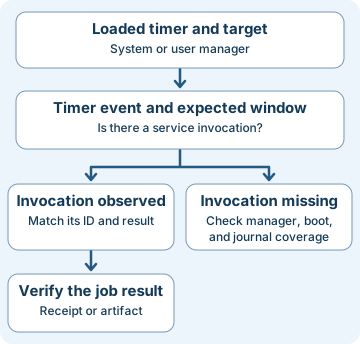
| Question | Evidence to read | What the evidence establishes |
|---|---|---|
| What is installed? | list-unit-files, cat, fragment and drop-in paths |
Files and enablement visible at collection time. Enablement and current activity are separate. |
| What is the manager using? | show properties and list-timers |
Loaded state, activation target, and available next/last timer timestamps. A last trigger does not record the target’s exit status. |
| What ran? | Service journal, host, boot ID, scope, and invocation ID where present | A specific service execution and its observed result. Timestamp proximity alone does not determine why it started. |
| Did the work succeed? | Job receipt, destination audit log, or a validated artifact tied to that run | A specific application effect within the evidence’s coverage. A service can exit successfully without producing the expected artifact. |
2. Interpret the time before interpreting a gap
| Setting | Time reference | Investigation implication |
|---|---|---|
OnCalendar= |
Wall clock and the time zone in the expression, or the local time zone if omitted | Record the actual time zone. Calendar events can move relative to UTC with DST. |
OnBootSec=, OnStartupSec= |
Elapsed time since boot or manager startup respectively | For a user manager, host boot and manager startup can differ. Within containers, system-manager OnBootSec= is mapped to OnStartupSec=. |
OnUnitActiveSec=, OnUnitInactiveSec= |
Elapsed time since the target unit was last activated or deactivated | The last service transition matters. Read all schedule expressions when a timer combines calendar and elapsed triggers. |
AccuracySec=, RandomizedDelaySec= |
Coalescing window and optional added delay | Read both values before treating a timestamp offset as an anomaly. |
Persistent= with OnCalendar= |
Stored last trigger helps catch up when an inactive calendar timer is activated | A missed period can cause a catch-up activation, possibly delayed. One activation does not imply one replay per missed interval. |
If the target is already active, a timer expiry does not restart it. Check long-running jobs and RemainAfterExit= when a timer fires but a new invocation is absent. Compare sleep, boot and manager startup with the intended time window. Ask whether a timestamp is nominal, recorded by the timer, or emitted by the service or application.
3. Follow a normal run, then test the alternatives
In synthetic case T01, report-index.timer is active in the system manager. Its nominal schedule is 02:00 UTC. A one-minute accuracy window and zero random delay make a last timer event at 02:00:42 consistent with the schedule. The service began at 02:00:42. In the worksheet, invocation inv-a completed successfully, and the report store recorded a receipt independently matched to that invocation. That supports a completed report. The two equal timestamps still leave the immediate source of the start uncertain.
For T03, a timer event and service invocation are both visible, but the service records an exit-code failure. Investigate the invocation’s error and application output instead of diagnosing a timer that failed to run. In T06, an authorized operator request was independently recorded at the same time as a timer event. Both could request the same start. Preserve which requests are proven and avoid attributing the invocation to either source on time alone.
Schedulers can also run unauthorized work under an account’s existing permissions. An unexpected service target, run account, or executable warrants validation against a trusted baseline. Package upgrades, deployment automation, recovery tools and administrator tasks can make similar changes. An approved timer name is weak evidence of what it currently executes. Inspect the resolved service and verify who or what changed it.
4. Collect and respond without changing the state
On an authorized systemd host with a reachable manager and journal read access, run these read-only examples. Replace both synthetic names with the identified timer and target. For a user timer, use systemctl --user and journalctl --user from the correct user’s manager context, with read access and persistent journal storage for journalctl --user. Run the inventory first to identify the target instead of assuming a suffix change gives the correct target.
systemctl --no-pager list-timers --all
systemctl --no-pager list-unit-files --type=timer

timer=report-index.timer
service=report-index.service
systemctl --no-pager cat "$timer" "$service"
systemctl --no-pager show "$timer" \
  -p FragmentPath -p DropInPaths -p LoadState -p UnitFileState \
  -p ActiveState -p SubState -p Unit -p NeedDaemonReload \
  -p TimersCalendar -p TimersMonotonic -p LastTriggerUSec \
  -p NextElapseUSecRealtime -p NextElapseUSecMonotonic
systemctl --no-pager show "$service" \
  -p FragmentPath -p DropInPaths -p ActiveState -p Result \
  -p ExecMainStatus -p InvocationID -p User -p DynamicUser -p ExecStart
journalctl --no-pager --utc -o json -u "$timer" -u "$service" \
  --since '2026-11-21 01:45:00 UTC' --until '2026-11-21 02:20:00 UTC'
- Record scope. Save the collection time, time zone, host, boot and systemd version. System and user managers need separate checks.
list-timers --allcovers timers the manager knows about, whilelist-unit-filesinventories unit files and enablement.catreads disk.showexposes the manager’s view and current properties. A missing property, a blank timestamp, andinactiveare different observations. A reload hint is useful context. Compare the actual settings and preserve both views. - Look for the specific run. Expand around expected delay, downtime or log arrival lag. The current service’s
ResultandExecMainStatusare snapshots, so use timestamped journal history for an older run. In JSON, preserve_BOOT_ID,__REALTIME_TIMESTAMP,__MONOTONIC_TIMESTAMPand available invocation IDs. Compare monotonic timestamps only within the same boot. For application process messages,_SYSTEMD_INVOCATION_IDcan identify the unit runtime cycle. Manager-side messages may use other fields. If logs are missing, verify local and central journal coverage. - Corroborate changes and effects. Compare the loaded target, service execution account, and executable with deployment records and fleet baselines. For an unexpected difference, retain file bytes, ownership, hashes, symbolic links and file-change audit records when available. A file modification time cannot establish an author. Match service execution to a job ID, object write, or comparable application confirmation.
- Decide how to respond. Send expected failures to the service owner with the invocation and observed error. Escalate an unexpected target corroborated by independent evidence. Preserve the runtime view and coordinate containment through the incident procedure, including impact on maintenance jobs. Verify the approved configuration, journal visibility and next expected job output after recovery.
5. Offline exercise and an actual calendar check
Download the synthetic worksheet and Python review script to the same folder. The worksheet uses normalized columns, including analyst judgments such as loaded_matches_disk and journal_coverage. Blank cells mean evidence is unavailable in this exercise. inv-a, inv-c and inv-f are exercise labels. The script reads only this supplied data.
- Open the CSV. For each row, record the inventory state, invocation, actual outcome, trigger evidence, and log coverage separately.
- Check your conclusions with Python 3. Expect
6 synthetic cases checked.
python3 systemd-timer-review.py
| Case | Expected interpretation and next check |
|---|---|
T01 |
Run and receipt observed. Leave precise trigger attribution open. |
T02 |
Enabled and inactive at collection. Check when it became inactive and why. |
T03 |
Invocation recorded and service failed. Read the error for this invocation. |
T04 |
User timer event recorded, service evidence missing. Verify UID 1001 scope, boot and journal access. |
T05 |
Loaded and disk settings differ. Preserve both views and check change history. |
T06 |
Run, receipt, and manual request observed. Identify what links the request to the execution before assigning the trigger. |
On Linux with systemd-analyze and the displayed options, calculate two nominal times without starting a service:
LC_ALL=C TZ=UTC systemd-analyze --base-time='2026-11-21 01:55:00 UTC' \
  --iterations=2 calendar '*-*-* 02:00:00 UTC'
Expect UTC instants 2026-11-21 02:00:00 and 2026-11-22 02:00:00. Read those instants instead of the relative “From now” text. If the script cannot find the CSV, check the original filenames and folder. If the calendar tool rejects an option, check the installed version and local man page. If manager commands fail on a container or a host without systemd, use the worksheet. An unreachable manager cannot answer whether a timer is active.
Verification scope. Python checked all six synthetic cases. The calendar command ran on systemd 257.13. The live manager and journal collection commands were reviewed against upstream documentation. Service activation and application outcomes in the worksheet are synthetic.
6. Check your understanding
- A timer file is enabled and the timer is inactive. Did today’s job run? Current enablement and activity cannot reconstruct a past invocation. Check the appropriate boot and service history.
- A trigger and service start share a timestamp. Can you attribute the start to the timer? Use the match as a lead. Check independent initiator, manager or audit evidence, especially when a manual request or another activation source is plausible.
- There is a successful service result and no report receipt. Can you close the issue as successful? Record the observed service result and verify the job’s destination or artifact for that invocation.
- The unit on disk names a different target than
show. Which do you keep? Preserve both with collection times. The loaded view describes current state and the files describe disk at capture. Changes between the incident and collection still need independent evidence.
Completion criteria. Explain all six cases, calculate the two nominal times if the tool is available, and write one short case note that separates a trigger, an invocation, an application outcome, and a remaining uncertainty.
7. Official references and next steps
Reviewed 2026-11-21 against upstream systemd 262 manuals. The exercise command was tested on 257.13. Use the manual matching your host’s build for command availability and fields.
- Clock choices, delay, catch-up and an already active target. systemd.timer · systemd.time
- Manager views, unit search paths, runtime properties and service configuration. systemctl · systemd.unit · Manager D-Bus properties · systemd.service
- Unit filters, journal metadata and calendar calculations. journalctl · Journal fields · systemd-analyze
Previous · Linux Journal Coverage
Next · Linux Process Investigation
Related articles
Backup Restore Verification · From Saved Copy to Recoverable Service
Use a real offline SQLite restore exercise to distinguish a matching hash, a usable database, an acceptable recovery point, and a service ready to resume.
Velociraptor Endpoint Collection: From a Network Alert to Host Evidence
Scope a request to one endpoint and interpret collection coverage, zero results, missing files and SIEM delivery using nine fictional cases.